 DanceTake
Filming alone goes wrong after you leave the phone: a foot leaves the frame, your face falls into shadow, or the camera shifts. Set the frame, light, and audio first, then focus on dancing.
Set the frame and light
Use portrait for short clips and landscape for a class, rehearsal, or group moving sideways. DanceTake records portrait video with the front camera; use another camera app for landscape.
Put the phone on a tripod or broad flat surface, with slack in the charging cable. From where you will dance, test your highest hands, lowest pose, widest step, and longest reach; move the phone back if anything leaves the frame. Face the main window or lamp so your face and clothes do not fall into shadow.
Choose the audio source
Record the room through the iPhone microphone, or play your own music or tutorial and use its original audio in the finished take. DanceTake does not include a media library, and you need permission to use the file.
Any speech and counts in the source stay in the audio; the app does not separate a teacher’s voice from the music. If you use Bluetooth, test for delay before a long take.
Check the red, yellow, or green prompt
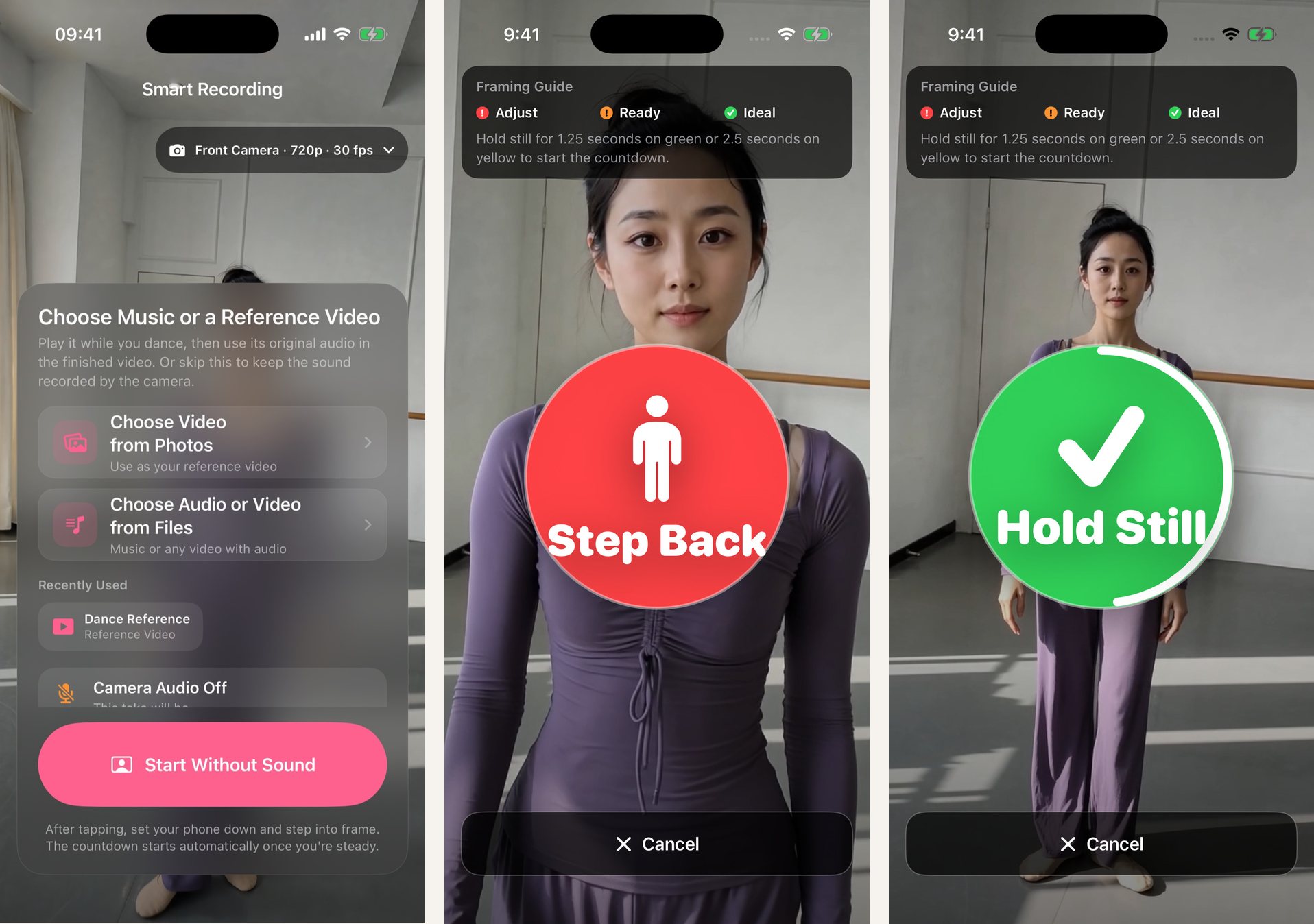
Before recording, DanceTake checks whether your head, shoulders, knees, and ankles are visible. Red means keep adjusting, yellow means the frame is usable, and green indicates a better full-body position.
These screenshots show source selection, step-back, and hold-still states. They are app examples, not a controlled room test. The prompt does not score the dancing or follow you while recording, so a large move can still leave the frame.
Record a test, then the real take
Record ten to twenty seconds of your biggest movement. Check the feet, music entrance, and camera position before starting over.
Tap Start, set the phone down, and step into position. Hold steady for about 2.5 seconds on yellow or 1.25 seconds on green to begin the 3–2–1 countdown. If the phone is fixed and you do not need framing help, the Camera timer is simpler.
Review before saving
Check for clipped hands or feet, a late music entrance, and an ending that runs too long. DanceTake can preview, scrub, mirror, and trim the take.
There is no watermark. Saving to Photos or using the share sheet requires a one-time unlock; recording, playback, mirroring, and trimming do not.