 ZipSeek
You remember a contract mentioning “service credit,” but the folder contains an agreement, a revised agreement, and several reports with unhelpful filenames. Searching each document in Word would work. The problem is deciding which one to open.
To search text across multiple Word documents, choose the folder containing them and search their contents, not just their names. ZipSeek can read DOCX files in that folder and its subfolders, then show the matching passages. Documents stored inside a ZIP can be included in the same search.
Try the tools you already have
For a known document, use Word’s own search field. For a collection, try Finder: enter a distinctive term and narrow the results by file type.
If Finder identifies the file you need, there is no reason to add another step. The walkthrough below is for a collection you want to inspect directly, especially when documents are scattered across subfolders or stored in archives.
Search a folder of Word documents
Start with the folder most likely to contain the answer. A client or project folder is usually a better choice than your entire drive. You do not need to move its documents into a new folder or combine them into one file.
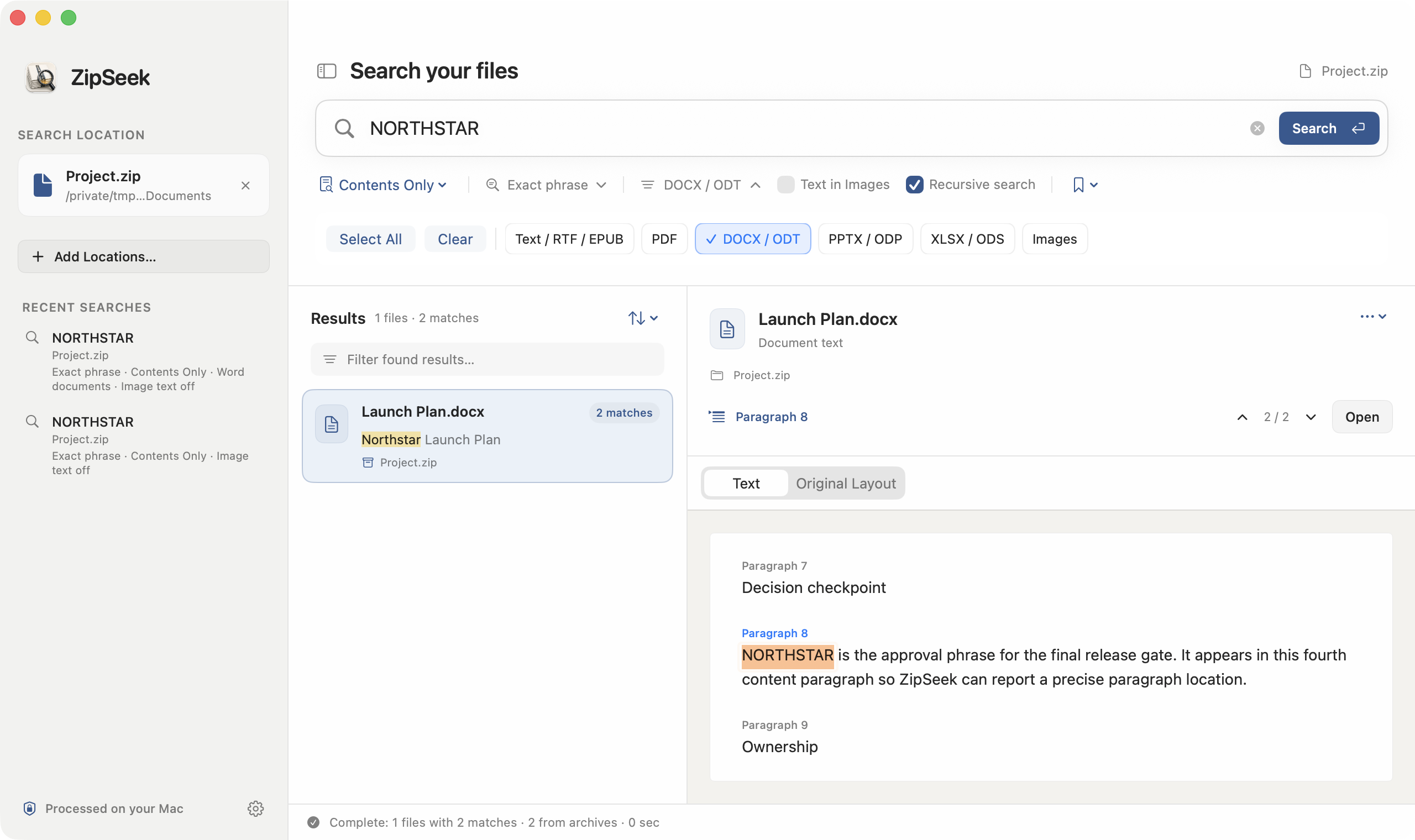
In ZipSeek, select that folder as the search location. Choose Contents Only and include Word documents in the file-type filter. Leave recursive searching enabled if the documents may be in subfolders.
Enter a short, distinctive piece of the text you remember, such as “service credit,” and run the search. An ordinary DOCX paragraph is already text, so it does not need OCR. Enable Text in Images when the words may be in a scan or screenshot embedded in the document.
Selecting Contents Only matters here. A file called Service Credit.docx could match by name even if its body says nothing about that subject. A contents search answers the narrower question: which documents actually contain these words?
Check the passage and the file it came from
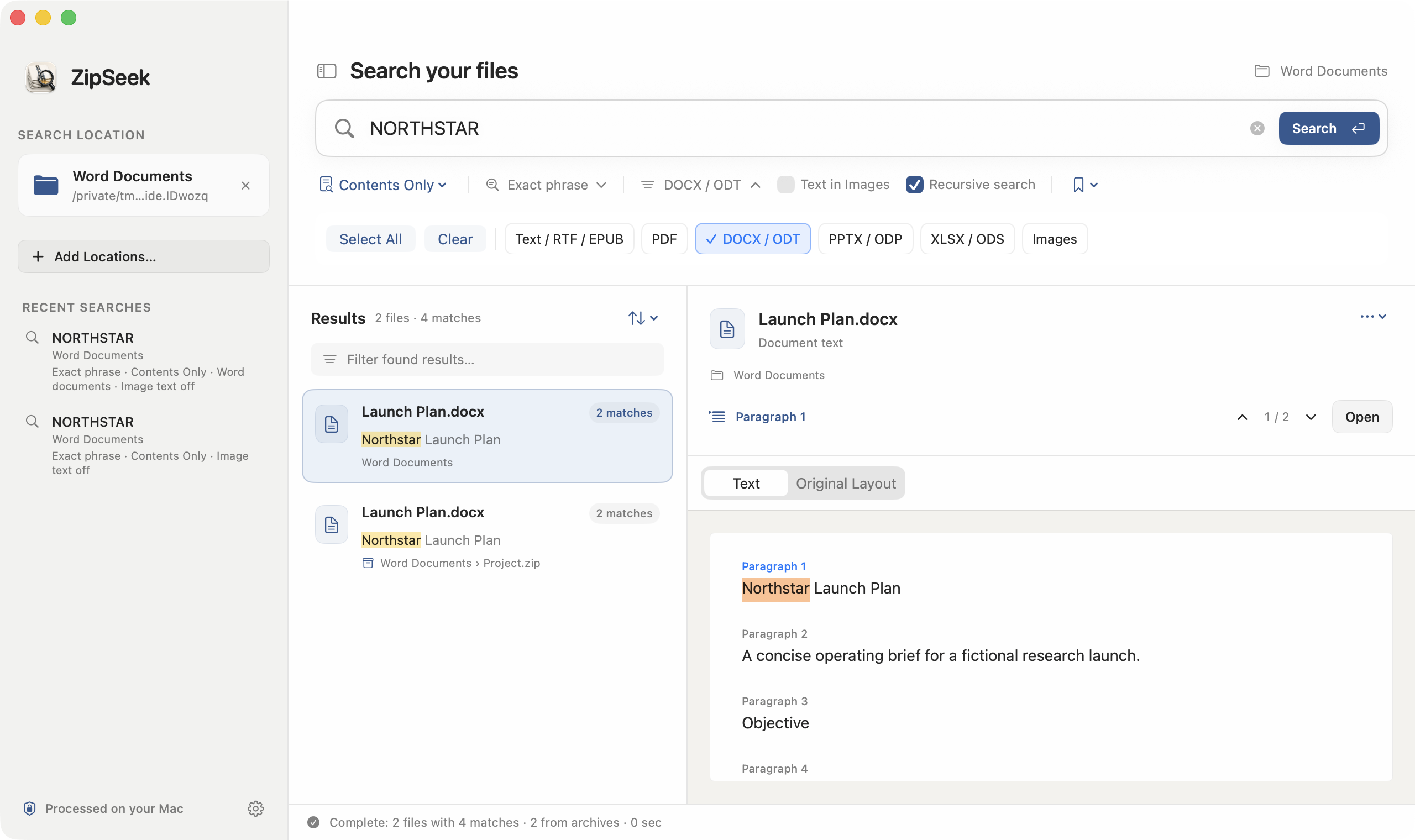
Select a result and read the surrounding paragraph in the text preview. A short snippet can help you choose a file, but the sentence before or after the match may change its meaning.
Check the path as well. Agreement.docx in a current project folder and Agreement.docx in last year’s backup are different sources, even when the passages match.
For Word documents, ZipSeek reports a paragraph or structural location rather than a fixed page number. Use the Text preview to inspect matches; Original Layout is not a full Word renderer with every occurrence highlighted. Open the document in Word when you need to check page layout or make changes.
If there are too many results—or none
A word such as “agreement” may appear throughout the collection. Try a less common phrase, a project code, or a reference number. If a longer phrase returns nothing, shorten it to a distinctive fragment you are confident appears in the file. A remembered sentence may not use the exact wording of the original.
Before assuming the text is absent, check the search location, the Word filter, and whether subfolders are included. Also check for files the search could not inspect. A skipped document is not a document with no matches.
Look at the extension. ZipSeek’s Word content search supports DOCX, not the older binary DOC format. For an old DOC file, use Word’s own search or save a DOCX copy with a compatible editor. Changing “.doc” to “.docx” in Finder does not convert the file.
If the text is part of an image, enable OCR and try again. Recognition can miss characters, so check important findings against the image itself.
Search Word documents inside a ZIP
An old project ZIP may contain the missing version. Select the ZIP directly, or search its parent folder with recursive searching enabled. Keep Word documents included in the result types.
The result retains the path through the ZIP to the DOCX inside it. You can check which archived copy contains the passage without manually unpacking the whole collection first. ZipSeek still has to decompress and read relevant data; searching a large archive is not instant.
Once you have the right file, open it to read or edit. If you need to work on most of the archive’s contents, unpacking the archive is the more practical next step.